If you use NetSuite invoices to track gross profit, you may have noticed something frustrating: the margin on the invoice does not always match what you see after close. The reason is usually simple. The cost tied to an invoice is often an estimate, while the true cost is created during fulfillment and inventory posting.
This creates a reporting gap. Your team wants to answer basic questions like: “What was our gross profit on this invoice?” or “Which items and customers are driving margin?” But invoice-based reports can be misleading when they rely on estimated cost.
In this post, we’ll show a practical way to make invoice reporting more reliable. The goal is not to change how NetSuite posts to the GL. The goal is to make invoice-level reporting reflect actual NetSuite COGS so you can trust gross profit on the transaction, line by line, without living in spreadsheets.
Why Invoice Gross Profit can be Misleading
Most finance teams rely on invoice-based reporting because it aligns with how results are reviewed: by invoice date, customer, item, sales rep, and class/location. It also works well with dashboards and saved searches. The challenge is timing and source. In many NetSuite workflows, the “real” cost is established when inventory is relieved (often at Item Fulfillment). But invoices may still show estimated cost values. As a result, invoice gross profit can look better or worse than reality, even if the GL is correct in total.
Most accounting teams want a few practical outcomes:
- Gross profit by invoice date
- Margin at the line level
- Reporting that works in saved searches and dashboards
These become difficult when invoice cost is estimated.
Actual NetSuite COGS is tied to inventory impact. That value can change based on costing method, inventory layers, purchase price changes, landed costs, and fulfillment timing. Even with stable pricing, cost can shift underneath the transaction. This is why “invoice margin” and “month-end margin” can disagree. You are often looking at two different cost sources
Why NetSuite Actual COGS on Invoices Breaks in Real Workflows
The most reliable approach is to bring the actual fulfillment cost onto the invoice line. The model is simple:
- The order is fulfilled and NetSuite establishes actual cost.
- The invoice is created or updated.
- Actual cost is written to the matching invoice line.
- Invoice reporting uses that value for gross profit and margin.
This does not change how NetSuite posts to the GL. It improves invoice-level reporting so the transaction view reflects actual costs.
This approach becomes even more important when your process is not “one fulfillment, one invoice.” Two common scenarios create reporting issues:
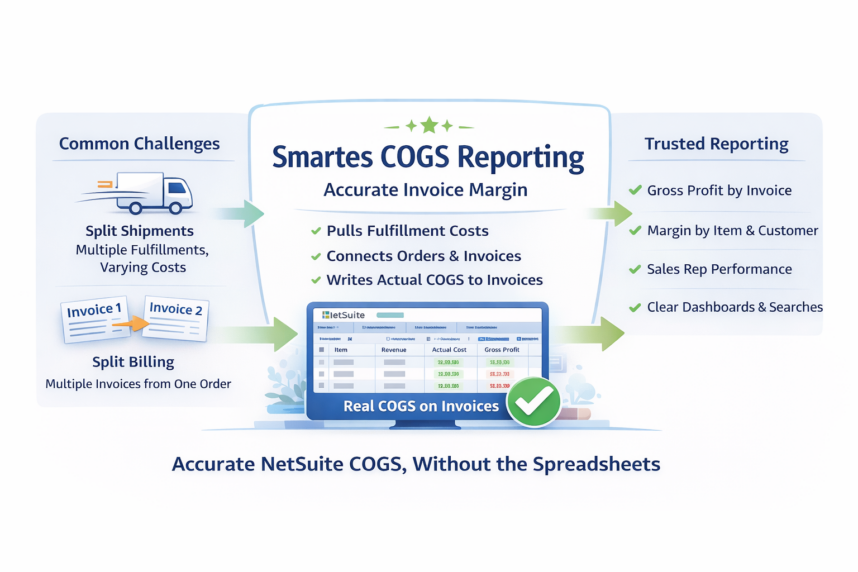
- Split shipments: multiple fulfillments can carry different costs across time.
- Split billing: multiple invoices can be created from the same sales order.
In these cases, accuracy depends on matching fulfillment lines to the correct invoice lines. If you cannot do that consistently, invoice margin reporting becomes unreliable.
Smartes COGS Reporting: The Practical Fix
This is exactly what Smartes COGS reporting solution is built to solve. Instead of forcing your team to piece together cost and margin using fulfillments, spreadsheets, or month-end rollups, Smartes connects the data so your invoices can report margin correctly. Here’s what the solution does in practical terms:
- Pulls actual cost from the fulfillment (where NetSuite establishes the true cost).
- Links fulfillment lines back to the sales order and billing lines, even when the order is shipped and billed in multiple parts.
- Writes actual COGS onto the invoice line, so the invoice becomes a reliable source for margin reporting.
- Updates invoices intelligently by focusing on newly created or modified invoices, which helps keep processing efficient.
The key point is the matching logic. In real-world order flows, the hard part is not “finding COGS.” The hard part is assigning the right fulfillment cost to the right invoice line when you have partial shipments, backorders, or multiple invoices. Smartes handles that mapping so the numbers on the invoice reflect what actually shipped and what it actually cost.
How to Report Accurate NetSuite COGS
Once actual cost is stored on the invoice line, reporting becomes much simpler and more trustworthy. With Smartes COGS Reporting, you can build margin reporting off invoices using standard NetSuite tools because the invoice contains the cost value you need. That means you can reliably report:
- Gross profit by invoice (not “estimated” gross profit)
- Margin by item and item group
- Margin by customer
- Margin by sales rep
- Margin by class, department, and location
- Trends by invoice date without waiting for month-end reconciliation
Just as important, you reduce the “why doesn’t this match?” conversations. When invoice GP uses actual cost, finance, operations, and leadership can look at the same invoice-level report and trust the result.
If your goal is accurate gross profit reporting at the transaction level—especially in split shipment and split billing scenarios—Smartes COGS Reporting is designed to make that possible inside NetSuite, without changing your GL behavior.
Reliable Actual COGS Solution
When invoice gross profit is based on estimated cost, it creates extra work and unnecessary doubt. Teams spend time reconciling invoice margin to the GL, explaining variances, and exporting data just to answer basic profitability questions. Over time, that friction slows down decisions around pricing, customer terms, sales performance, and product strategy.
Smartes COGS Reporting removes that uncertainty by making invoices a trustworthy source for margin reporting. It takes the actual fulfillment cost NetSuite establishes, matches it back to the correct invoice lines, and writes that value onto the invoice so reporting reflects real NetSuite COGS. The result is simple: you can run invoice-based saved searches, dashboards, and margin reports with confidence, because the cost on the invoice aligns with what actually shipped and what it actually cost—without changing how NetSuite posts to the GL. Contact us to learn how you can install this solution in your NetSuite environment.